How to Transfer Data From Your Old Phone to a New One: Complete Guide
Unboxing a new phone is joyful until the dread sets in: years of photos, chats, contacts and apps sit on the old device, and moving them feels like defusing a bomb. It does not have to be. Modern phones include excellent migration tools, and with a little preparation the transfer is mostly automatic. This complete guide walks through moving everything from your old phone to a new one, whether you are switching Android to Android, iPhone to iPhone, or crossing between the two.
Before you start: the preparation checklist
An hour of preparation prevents most transfer disasters. Update both phones to the latest software, since migration tools work best on current versions. Back up the old phone fully: iCloud or iTunes backup for iPhone, Google One backup for Android, and make sure WhatsApp’s own chat backup has run recently. Charge both phones above 50 per cent or keep them plugged in; a dead battery mid-transfer corrupts data. Connect both to stable Wi-Fi. Know your passwords: Apple ID, Google account, and banking app credentials, because you will sign in again. And note what will not transfer automatically, so nothing surprises you later.
Android to Android: the easy path
This is the smoothest migration. During setup, the new phone offers Copy apps and data from your old device; connect the phones with a cable for the fastest, most complete transfer, or use Wi-Fi if no cable fits. Google’s system moves apps, contacts, messages, photos, settings and even wallpapers. Samsung’s Smart Switch and similar manufacturer tools go further, moving home-screen layouts and some app data. WhatsApp transfers via its own Chat Transfer feature or the Google Drive backup. After setup, open the Play Store and let apps finish updating, then sign into banking and payment apps individually, since those deliberately do not transfer credentials for security.
iPhone to iPhone: Quick Start
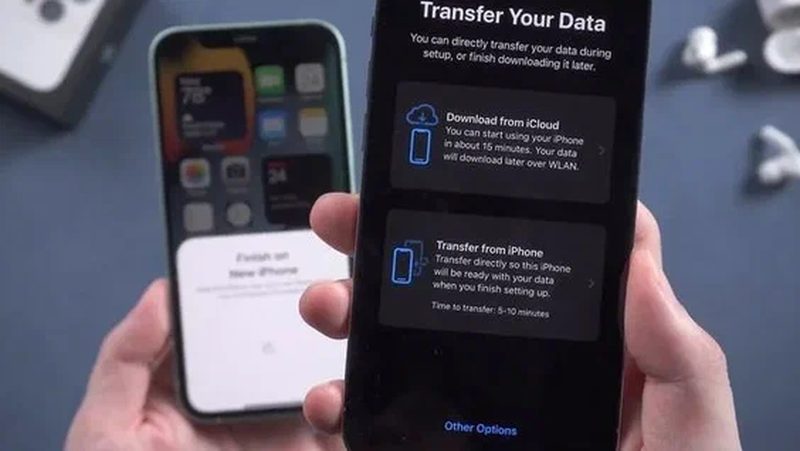
Apple’s Quick Start is famously painless. Place the phones side by side, both on Wi-Fi with Bluetooth on, and the old iPhone offers to set up the new one. Choose Transfer from iPhone for a direct device-to-device migration over Wi-Fi or cable; it moves nearly everything, including app logins for many apps, photos, messages and settings. Alternatively, restore from an iCloud backup, which is slower but works if the old phone is unavailable. Sign in with your Apple ID when prompted, keep the phones close and plugged in, and let the process complete without using either device. Afterwards, verify iMessage, FaceTime and Apple Pay, which sometimes need reactivation.
Switching between Android and iPhone
Cross-platform moves need the dedicated tools. Android to iPhone: Apple’s Move to iOS app, installed on the Android phone, transfers contacts, message history, photos, videos, mail accounts and calendars over a private Wi-Fi network created during setup; run it before completing iPhone setup, as it only works on a fresh device. iPhone to Android: connect the phones with a cable during Android setup and Google’s transfer tool pulls across photos, contacts, messages and apps with Android equivalents. WhatsApp now supports cross-platform chat transfer officially. Expect some friction: paid apps must be repurchased, and a few app logins will not carry over. But the essentials, photos, contacts, chats, make it across reliably.
What to verify before wiping the old phone
Do not erase the old phone until you have confirmed the new one is complete.
- Photos and videos: spot-check albums and counts on the new phone.
- WhatsApp: open chats and confirm recent messages and media are present.
- Contacts: search for a few names, especially ones added recently.
- Two-factor authentication: migrate authenticator apps deliberately; losing 2FA access can lock you out of accounts.
- Banking and UPI apps: sign in fresh and verify they work before wiping.
- Notes, voice memos and files in cloud drives.
Only when everything checks out, sign out of accounts on the old phone and perform a factory reset.
FAQs
How long does a phone transfer take? Typically 30 minutes to two hours depending on data volume. A 200GB photo library over Wi-Fi is the slow case; cable transfers are much faster.
Will my WhatsApp chats transfer? Yes, via WhatsApp’s own transfer or backup features on all platform combinations. Ensure the backup completed before starting.
Do I need the old phone present? For the fastest transfers, yes. Cloud backups let you set up the new phone without it, but direct transfer is quicker and more complete.
Moving to a new phone is mostly a solved problem: prepare, use the built-in tool, verify, then wipe. Follow that sequence and the only thing you will lose in the upgrade is the anxiety.
Source: Google Support

Khabar 24h Editorial Desk — our explainers are prepared by the Khabar 24h editorial team using AI-assisted research tools, and every piece is reviewed by a human editor before publishing. We do not claim original reporting: our work is turning complex topics into simple, accurate summaries. Spotted an error? Write to contact@khabar24h.com — our corrections policy aims for same-day review.
More from this author →