How to Back Up Your Phone: The Complete Guide for Android and iPhone
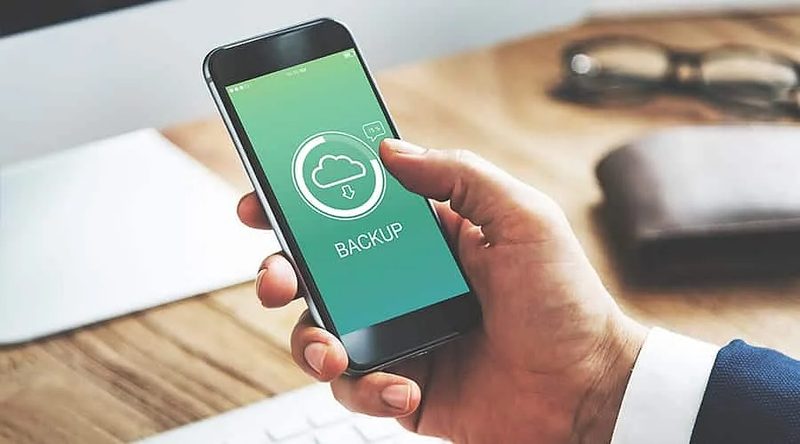
Most people do not think about a backup until the day they need one. A phone slips out of a pocket on a train, a software update goes wrong, or a cracked screen refuses to turn on, and years of photos, chats, contacts and documents vanish in a single afternoon. Surveys of smartphone owners in India repeatedly find that fewer than half back up their phones regularly, even though the phone is now the primary camera, wallet and filing cabinet for most of us. The good news is that learning how to back up your phone takes less than ten minutes of setup on both Android and iPhone, after which the whole process runs silently in the background.
Why backups matter more than they used to
A decade ago, losing a phone meant losing your contacts and maybe some messages. Today it can mean losing your child’s baby photos, your business’s WhatsApp conversations, the scanned copies of your property documents and two-factor authentication apps that guard your bank accounts. Phones also fail more catastrophically than they used to: a modern smartphone is water-resistant but a single bad drop can kill the storage chip, and ransomware and theft target phones exactly because they hold so much. A backup is the only real insurance policy you have, and unlike insurance, it costs nothing beyond a little cloud storage.
How to back up an Android phone
Android phones back up to your Google account automatically once the feature is switched on. Open Settings, tap Google, then Backup, and make sure “Backup by Google One” is enabled. This saves your app data, call history, contacts, device settings and SMS messages to your Google account. Photos and videos are handled separately through Google Photos: open the app, tap your profile picture, choose Photos settings, then Backup, and switch it on. Google gives every account 15 GB of free storage shared across Gmail, Drive and Photos; if your library is bigger, the paid Google One plans start at 100 GB. Once both switches are on, your Android phone backs itself up whenever it is charging and connected to Wi-Fi.
How to back up an iPhone
iPhones back up to iCloud. Open Settings, tap your name at the top, choose iCloud, then iCloud Backup, and turn it on. The first backup runs over Wi-Fi and can take a while; after that, your iPhone backs up automatically every day when it is locked, charging and on Wi-Fi. Every Apple ID comes with 5 GB of free iCloud storage, which is rarely enough once photos are included, so most people end up on a paid iCloud+ plan starting at 50 GB. If you prefer not to pay, you can also back up an iPhone to a computer: connect it to a Mac with the Finder or to a Windows PC with iTunes or the Apple Devices app, and choose “Back up now”. Computer backups are free and unlimited, though you must remember to do them yourself.
What actually gets backed up, and what does not
Not everything on your phone makes it into a cloud backup, so it is worth knowing the gaps.
- Photos and videos: backed up only if Google Photos backup or iCloud Photos is switched on separately. This is the setting most people forget.
- WhatsApp chats: backed up separately inside WhatsApp’s own settings, to Google Drive on Android and to iCloud on iPhone. Your phone backup does not include them.
- Contacts, calendars and email: these usually live in your Google or Apple account already, so they survive a phone change automatically.
- Authenticator apps: most, including Google Authenticator, now offer their own encrypted cloud sync, but you must enable it inside the app.
- Downloaded music, movies and files: typically not included in cloud backups, since you can re-download them from the original service.
- Banking and payment apps: your accounts are safe, but you will need to re-verify your identity when you sign in on a new device.
How often should you back up your phone?
For most people, the answer is: continuously. Both Android and iPhone are designed to back up daily and automatically, and there is almost no reason to turn this off. Manual backups are worth doing before a big software update, before switching to a new phone, and before handing your old phone to anyone else. If you travel or work in areas with poor internet, run a manual backup whenever you reach good Wi-Fi. And once a year, do a recovery drill: check that your photos are visible at photos.google.com or icloud.com, and confirm your most recent backup date in your phone’s settings. A backup you have never tested is only a hope.
FAQs
Will backing up my phone slow it down or use mobile data? No. Cloud backups run in the background and are configured to use Wi-Fi only, and they are scheduled for times when your phone is idle and charging.
Is my backup private? Backups are encrypted in transit and on the provider’s servers. WhatsApp backups on Android are end-to-end encrypted by default, which is worth keeping switched on.
How much free storage do I really get? Google gives 15 GB free across its services; Apple gives 5 GB of iCloud free. Most photo-heavy users will need a small paid plan, which is usually cheaper than a single month of most streaming subscriptions.
Backing up your phone is one of those jobs that feels tedious until the day it saves you. Spend the ten minutes now: turn on the automatic backup, switch on photo backup, check WhatsApp’s chat backup, and note the date somewhere. The next time a phone is lost, stolen or broken, you will lose an afternoon of inconvenience instead of years of memories.
Compiled by the Khabar 24h Editorial Desk from publicly available sources.

Khabar 24h Editorial Desk — our explainers are prepared by the Khabar 24h editorial team using AI-assisted research tools, and every piece is reviewed by a human editor before publishing. We do not claim original reporting: our work is turning complex topics into simple, accurate summaries. Spotted an error? Write to contact@khabar24h.com — our corrections policy aims for same-day review.
More from this author →