How to Free Up Storage on Android and iPhone Without Losing Photos
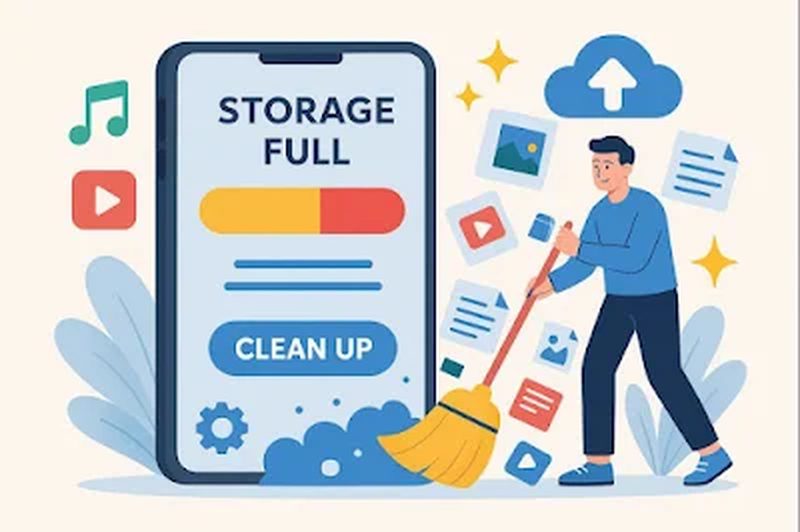
Storage full is the modern phone’s most annoying notification. Photos, videos, WhatsApp forwards and apps conspire to devour every gigabyte, and the fear of deleting something precious keeps most people from cleaning up at all. The good news: you can reclaim tens of gigabytes on both Android and iPhone without losing a single photo. This guide shows where storage actually goes and how to free it safely.
Find out what is eating your storage
Start with the facts, not guesses. On iPhone, go to Settings, General, iPhone Storage for a colour-coded breakdown. On Android, Settings, Storage shows a similar view. The usual suspects appear in a predictable order: photos and videos, which often consume half the phone; WhatsApp media, which duplicates everything into chat folders; downloaded streaming content from Netflix, Spotify or YouTube; and a long tail of apps you have not opened in months. Knowing the breakdown prevents the classic mistake of deleting apps to save megabytes while gigabytes of duplicate videos sit untouched.
Photos: back up, then clear
Photos are the biggest win and the biggest fear, so handle them first. The safe workflow is back up, verify, then remove local copies.
- Turn on cloud backup: Google Photos on Android, iCloud Photos on iPhone, and wait until the backup completes on Wi-Fi.
- Verify the backup on another device or a computer before deleting anything locally.
- Use the built-in free-up-space feature: Google Photos offers Free up space, iPhone offers Optimise Storage, both remove local copies of backed-up originals.
- Delete screenshots, blurry shots and duplicates first; they are the easiest gigabytes to reclaim.
- Check the Recently Deleted album afterwards; items there still occupy space for 30 days until permanently removed.
Done properly, your entire photo library stays accessible while occupying almost no phone storage.
Tame WhatsApp and messaging apps
WhatsApp is a silent storage monster in India, where family groups forward videos daily. In WhatsApp, go to Settings, Storage and Data, Manage Storage to see exactly how much space each chat consumes, then delete large videos from groups while keeping the chat text. Turn off auto-download for media, or limit it to Wi-Fi and photos only. Telegram users should set auto-remove for cached media. Also clear the downloads folder and the file manager’s WhatsApp media directories, where sent and received files often exist in duplicate. This single cleanup routinely frees 5 to 15GB.
Clear the caches and the clutter
Beyond media, several smaller cleanups add up. On Android, individual apps accumulate caches; clearing cache for heavy apps like Chrome, Instagram and YouTube in App Settings frees space without deleting logins. Offload unused apps: iPhone’s Offload Unused Apps removes the app but keeps its data, and Android’s auto-archive does similar. Delete downloaded Netflix episodes, Spotify offline playlists and YouTube downloads you have already watched. Remove old voice notes, podcast episodes and large email attachments. Finally, restart the phone; the system clears temporary files on boot that no cleaner app can reach.
Prevent the problem from returning
A one-time cleanup buys months, but habits buy years. Keep cloud photo backup always on so local storage never becomes the archive. Review the Manage Storage screen quarterly. Prefer streaming over downloading where connectivity allows. When buying your next phone, be honest about your usage: if you shoot lots of video, 256GB is worth the premium over 128GB, because storage anxiety has a real cost in time and frustration. And remember that a phone constantly at 99 per cent full also runs slower, since the system needs free space for updates and temporary files; keeping 10 to 15 per cent free is good hygiene.
FAQs
Will deleting WhatsApp media delete my chats? No. Clearing media from Manage Storage removes the photos and videos but keeps the text messages, unless you choose to delete the chat itself.
Is it safe to use phone cleaner apps? Mostly unnecessary. Built-in storage tools on Android and iPhone handle the job; third-party cleaners often show ads and do little the system cannot.
What if my phone will not update due to low storage? Free at least 5GB before a major OS update. Photos backup plus WhatsApp cleanup almost always creates enough room.
Storage management is not about deprivation; it is about putting your memories in the cloud where they are safe and keeping your phone lean for the work it does every day. An hour of cleanup today buys you a fast, spacious phone for months.
Source: Google Support

Khabar 24h Editorial Desk — our explainers are prepared by the Khabar 24h editorial team using AI-assisted research tools, and every piece is reviewed by a human editor before publishing. We do not claim original reporting: our work is turning complex topics into simple, accurate summaries. Spotted an error? Write to contact@khabar24h.com — our corrections policy aims for same-day review.
More from this author →